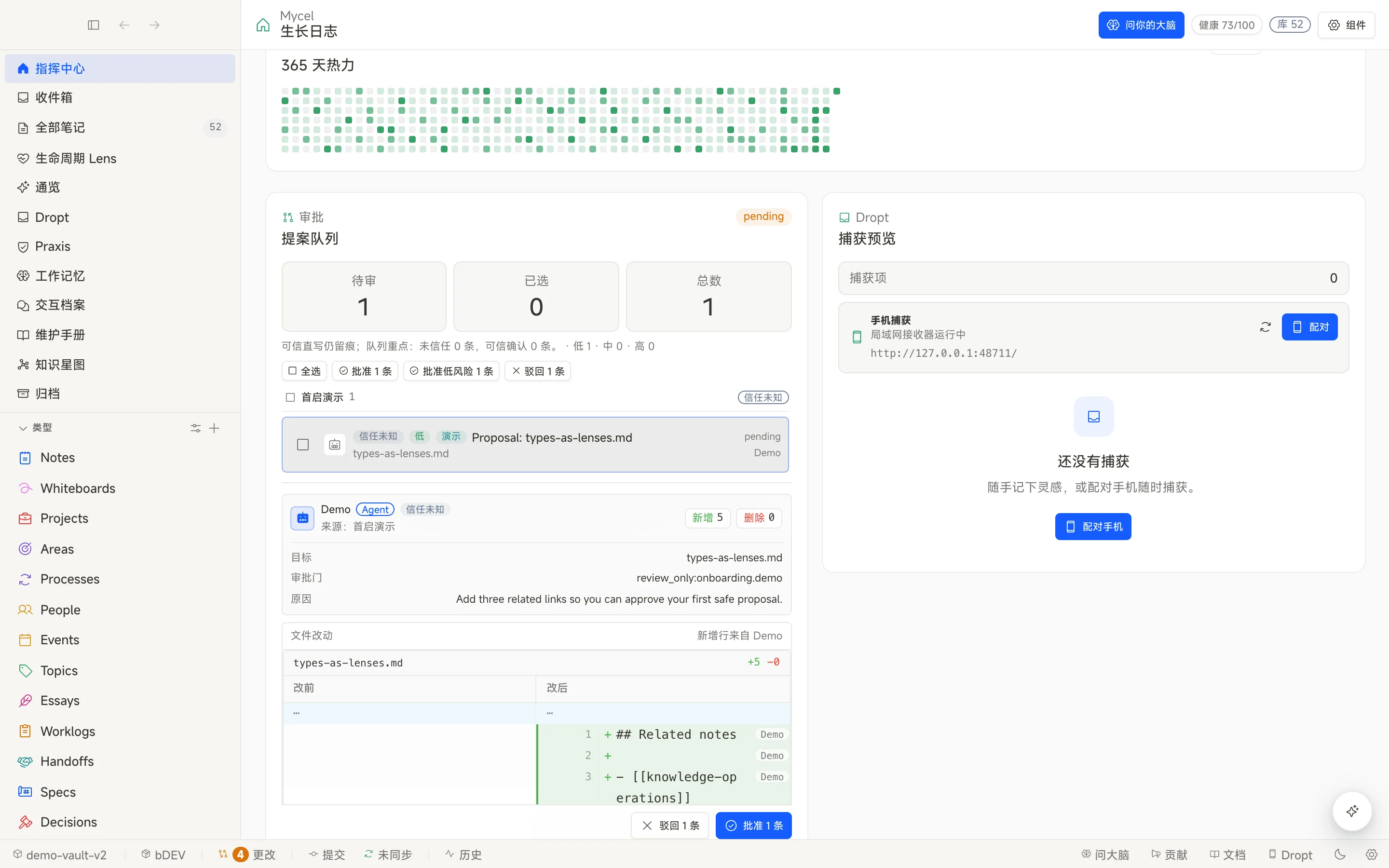
Proposal Queue
When an agent submits a proposal through MCP, Mycel keeps the target path, reason, proposer, diff, and proposal metadata. Open the queue from To handle → AI Proposals, or jump in from the Today action cards when something is waiting on you.
Approve, reject, undo
- Approve applies the proposal to the target Markdown file and records a reviewable status.
- Reject goes through the backend reject command, storing rejection state and reason — the frontend never silently rewrites Markdown.
- Undo rolls an approved proposal back to the pre-accept snapshot. That depends on previous content recorded at accept time and on git history.
Risk tiers
Policy classifies proposals as low, medium, or high risk. Low-risk items can auto-approve after you opt into the policy; medium and high risk still need human review. Auto-approve is not unconditional direct write: it still writes a changeset, keeps provenance, and falls back to the human queue when policy does not apply.
Low-risk auto-approve is opt-in. The default path remains manual review.
Circuit breakers and audit
Policy includes auto-approve budgets, queue stats, and breaker prompts. When consecutive auto-approvals hit the limit, the UI asks you to intervene. The queue view and Today keep state so you can see what is waiting, accepted, or rejected.
Knowledge lifecycle fields
Confidence, review-required, and other lifecycle fields are note content. If an agent wants to change them, that change must enter the Proposal Queue like any other edit — except when you adjust them yourself in the editor.
Working Memory facts
Since 0.1.37, pending Working Memory facts from agents share the same Proposal Queue as Markdown vault edits. The Working Memory panel is for viewing and hand-written facts; approve and reject happen in the queue. See Unified Approval.
0.1.83: closing the loop with receipts
The Proposal Queue always reads the active vault — it no longer mistakes a Git history directory for pending sources. Duplicate load toasts collapse into one. After you manually “Run now” an automation in Settings, success names the cadence and update time; failure keeps the in-settings error and shows an error receipt. The in-app official Help Vault also uses a wider document reader so you can consult rules before you review.
Where decisions surface now
Today lifts pending governance work into a human-readable action area. Open the complete queue from To handle → AI Proposals; automation failures remain visible in Settings and surface on Today so they are harder to miss.